
The Rehab Plan (RP) is what we here at MPR call what you might know as an exercise program.
Login: You can login to MyPhysioRehab from any computer that has internet access. To login go to www.myphysiorehab.com
Simply enter your username and password to get started.
To Create an Rehab Plan for a patient you will need to do the following:
1) Create New Client: This will allow you to add a new patient to your database. J
- You will need to click the
 icon next to “All Clients”.
Then enter their First name, Last name and email address.
Now you can either click “Save” or click “Save and Create Rehab Plan” See Picture 1.
2) Save: Once all their details are saved you can click the “Save & Create Rehab Plan" button. See Picture 1.
Picture: 1

3) Creating a Rehab Plan:
Watch the video above on how to create a Rehab Plan for your client
Its always best to give a patient a diagnosis first, so we suggest you start by searching for their injury. Use the search box to search a body region or specific injury type.
To refine further you can simply use the tags in the left menu. When you click on a tag, all injuries or exercises relating to that tag will be available for you to view in the list below. You can select multiple tags and remove tags at any time to tailor your search needs.
If you want to go back to the initial starting list, just click the “X” to clear the Search and the full list of injuries and exercises will be available for you to view again.
If you do not want to search the injuries list you can select the library tab in the available list to see only exercises.
Picture: 2

4) Selecting exercises or injuries to add to your “Rehab Plan”: Simply click on the name of the exercise or injury and it will be added to your template. You can then add text if you wish to make specific comments on exercises by clicking on the text. To remove an exercise or Injury from the template, click “remove”.
To preview the exercise before adding it: Simply hold the cursor over the exercise or injury name to see a picture of it. See Picture 2.
5) Adding Sets and Reps: Click on the number you wish to change. Note: only 1 number is allowed in each box ie 3-4 is not accepted. If you wish to get them to hold an exercise, click on the word “Reps” and change it to “Hold” from drop down list. See Picture 3.
If you leave “Sets” and “Reps” blank, they will not appear in the final patient injury profile Pdf.
Picture: 3
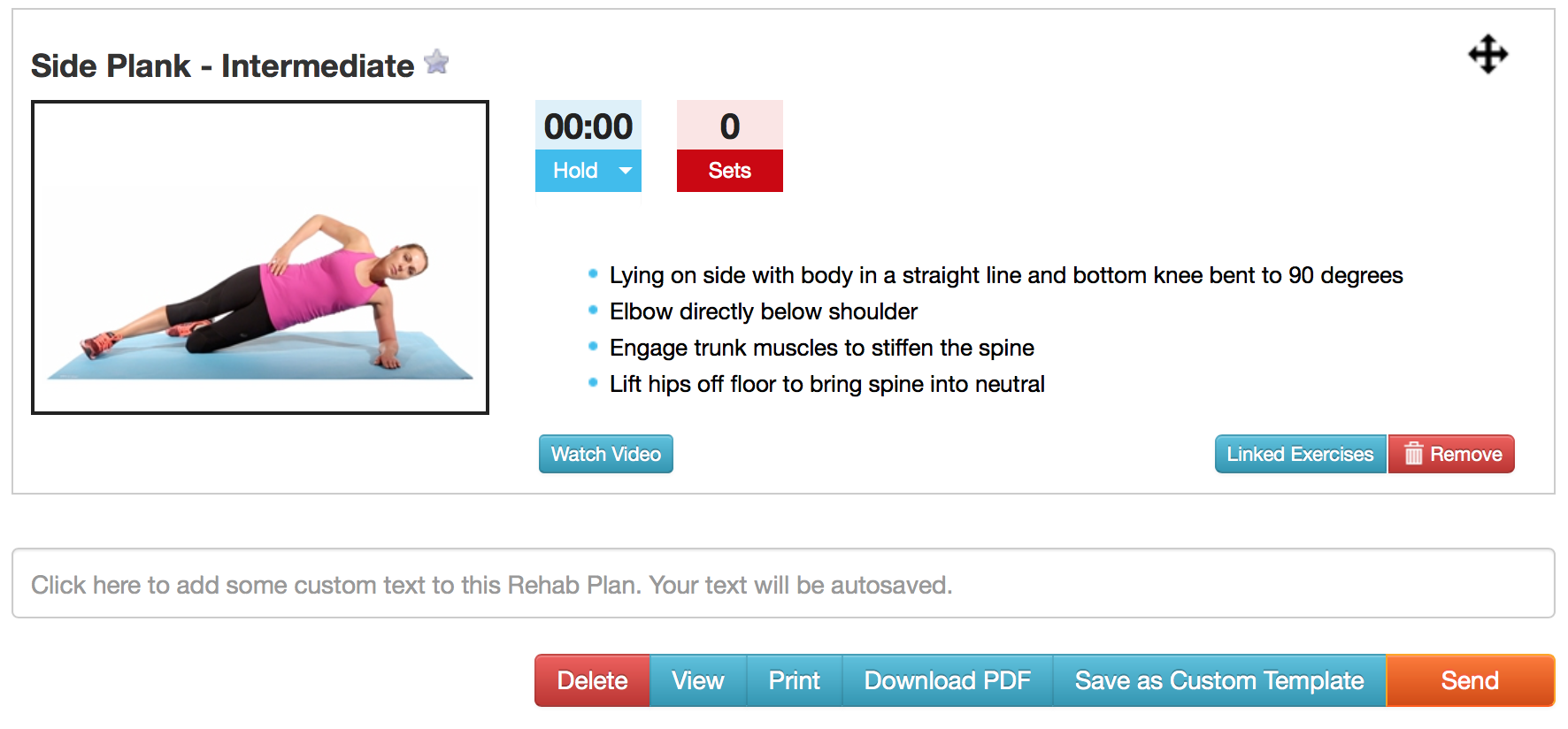
6) Adding General Comments: Use the General comments text box at the bottom of the page to add general comments relating to their Rehab Plan (see in picture 3 above).
7) Adding your own photos or exercises: If you wish just to add you own exercise or photo with your own comments then just select the “Add Custom Exercise” from the Tags list. Read more on this topic here.
8) Previewing and sending: If you wish to see what the Rehab Plan will look like to the client, click “View” to see the finished product. Otherwise click send and MyPhysioRehab will email the plan to your client from your registered email address.
You do not need to save! MyPhysioRehab automatically saves as you work so once you navigate away from a Rehab Plan screen, it is already stored and ready to edit again next time.
That’s all that is needed to get started. Watch our quick video guide at the top of the page to see all these steps in action.
Comments
0 comments
Article is closed for comments.